The following sections describe how to deploy EspressManager as a servlet under supported application servers.
The instructions assume that EspressChart 7.1 is installed on the system. The location of the EspressChart installation will be referenced as <EC_INSTALL_DIR>.
JDK 8 is the baseline Java version for these deployment instructions. Oracle JDK, OpenJDK, and Amazon Corretto can be used unless otherwise noted for a specific application server.
Make sure that EspressManager is running before users connect. EspressManager can be started from the EspressManager Monitor page described in each application server section or directly from the product installation directory.
<EC_INSTALL_DIR>\espressmanager.bat
![[Note]](../../../images/note.png) | Note |
|---|---|
On non-Windows systems, use the corresponding |
The following instructions show how to install and configure Apache Tomcat and deploy EspressChart under Tomcat. The location of the Tomcat installation will be referenced as <TOMCAT_INSTALL_DIR> and the location of the EspressChart installation will be referenced as <EC_INSTALL_DIR>.
These instructions are written for Windows systems. Steps for other operating systems should be similar.
Tomcat versions 5.5.x, 6.0.x, 8.5.x, and 9.0.x are supported.
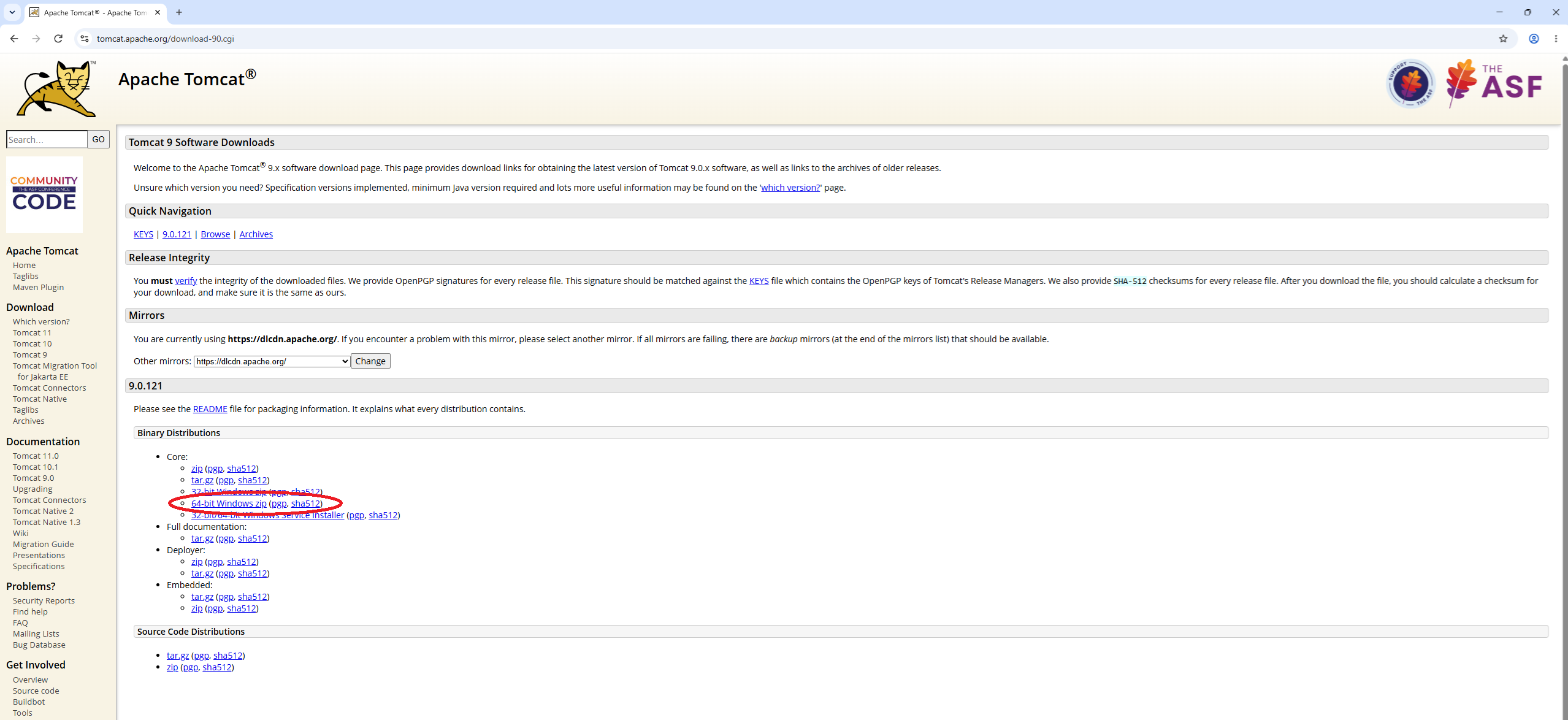
Open the Apache Tomcat 9 download page at https://tomcat.apache.org/download-90.cgi.
Under Binary Distributions, locate Core and download the 64-bit Windows zip package.
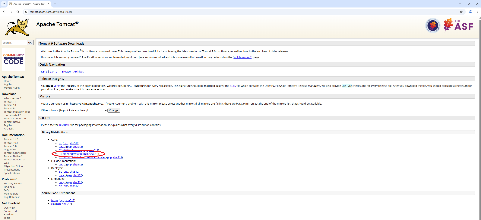
Apache Tomcat 9 Download
After the download completes, extract the ZIP archive to a directory of your choice. For example:
C:\Tomcat9
The extracted Tomcat directory will be referenced as
<TOMCAT_INSTALL_DIR>throughout this section.
| Note |
|---|---|
JDK 8 can be used with all Tomcat versions listed above. Tomcat 8.5.x and 9.0.x can also run with later supported JDK versions. |
Open the
<TOMCAT_INSTALL_DIR>\webapps\directory.Copy the entire EspressChart installation directory into the
webapps\directory and name the copied directoryEC.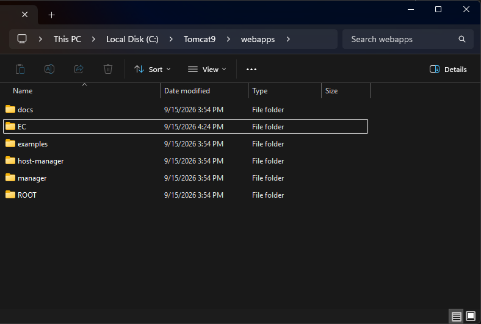
Tomcat Web Application Deployment Directory
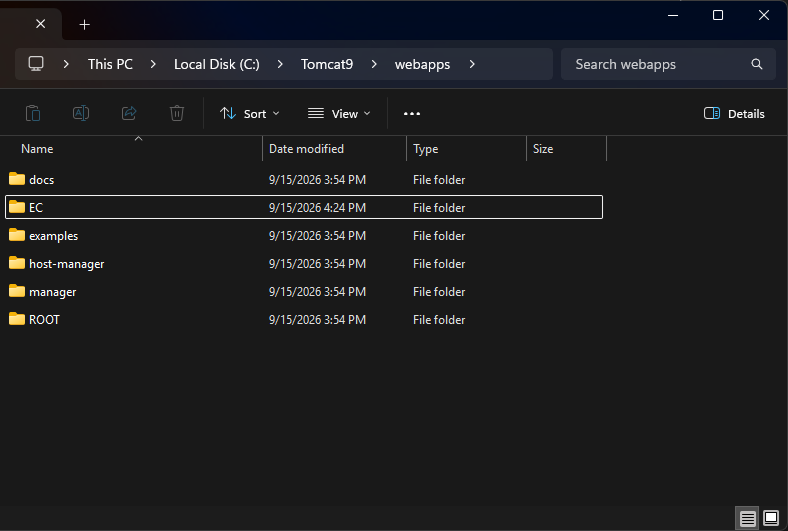
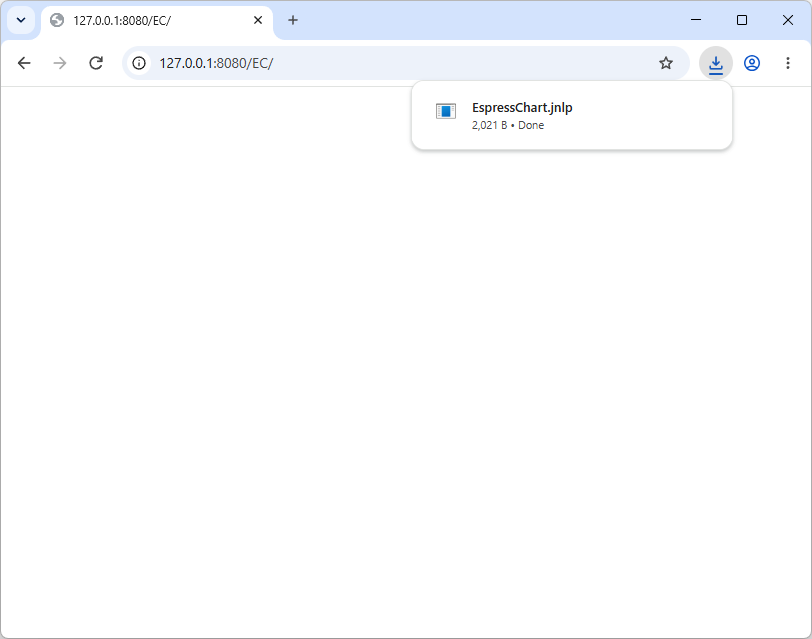
The EC directory name gives the application the /EC context. The application will be available at http://<your-server-ip>:8080/EC.
Open the
<TOMCAT_INSTALL_DIR>\bin\directory.Create a file named
setenv.batif it does not already exist, or open the existing file in a text editor.Add the following lines:
set "JAVA_HOME=<JDK_INSTALL_DIR>"
set "CATALINA_HOME=<TOMCAT_INSTALL_DIR>"
cd /d <EC_INSTALL_DIR>
Replace
<JDK_INSTALL_DIR>with the directory of the JDK used to run Tomcat.Replace
<TOMCAT_INSTALL_DIR>with the Tomcat installation directory.Replace
<EC_INSTALL_DIR>with the EspressChart installation directory.
Tomcat Configuration
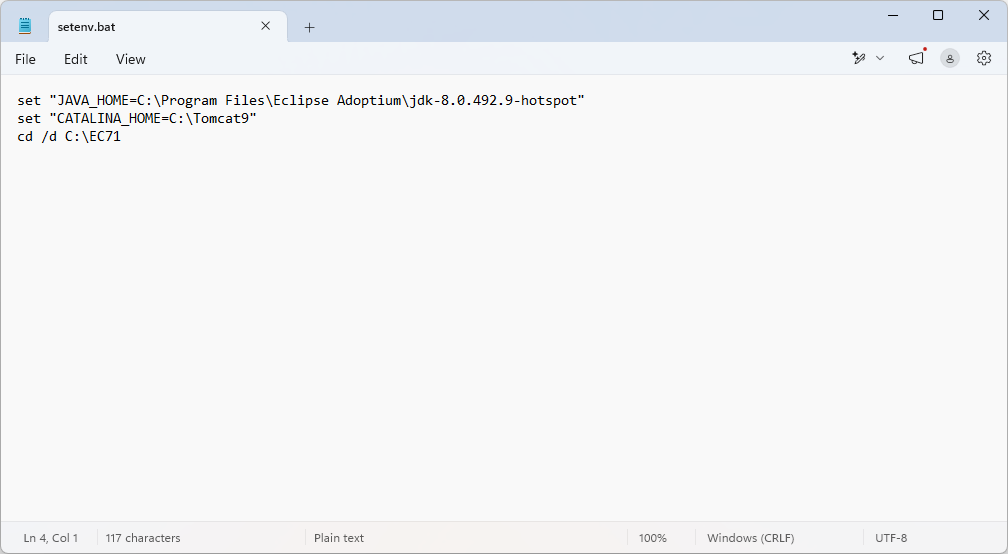
The JAVA_HOME setting specifies the JDK used to start Tomcat. The CATALINA_HOME setting specifies the Tomcat installation directory.
The cd /d <EC_INSTALL_DIR> command sets the working directory to the EspressChart installation directory so that EspressChart can locate files referenced using relative paths.
Make sure that the following servlet connection settings are present in <TOMCAT_INSTALL_DIR>\webapps\EC\EspressChart.jsp:
<param name="comm_protocol" value="servlet"/>
<param name="comm_url" value="<%=codebase%>"/>
<param name="servlet_context" value="servlet"/>
These settings are included in the default EspressChart 7.1 installation. If the values in your file differ, change them to the values shown above.
Open the
<TOMCAT_INSTALL_DIR>\bin\directory.Run
catalina.batwith therunargument:catalina.bat run
A console window opens and Tomcat starts. Leave this window open while Tomcat is running. Closing the window stops the server.
To start EspressManager manually or check its status, open the following page in a browser:
http://<your-server-ip>:8080/EC/EspressManager.jsp
Click to start EspressManager. The same page can also be used to check its status or stop it.
The following instructions show how to install and configure Red Hat WildFly 25 and deploy EspressChart under WildFly. The location of the WildFly installation will be referenced as <WF_INSTALL_DIR> and the location of the EspressChart installation will be referenced as <EC_INSTALL_DIR>.
These instructions are written for Windows systems. Steps for other operating systems should be similar.
WildFly versions 23.x, 24.x, and 25.x are supported.
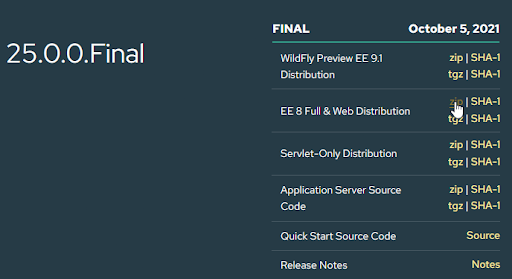
Open the WildFly download page at https://www.wildfly.org/downloads/#25.0.0.Final.
Locate the 25.0.0.Final release. Under EE 8 Full & Web Distribution, click the zip link to download the ZIP archive.
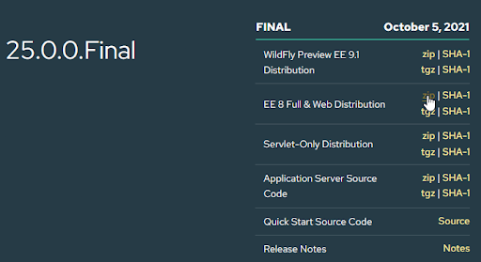
WildFly 25.0.0.Final Download
After the download completes, extract the ZIP archive to a directory of your choice. For example:
C:\wildfly-25.0.0.Final
The extracted WildFly directory will be referenced as
<WF_INSTALL_DIR>throughout this section.
Open the
<WF_INSTALL_DIR>\standalone\deploymentsdirectory.Copy the entire EspressChart installation directory into the
deploymentsdirectory and rename the copied directory toEC.war.Create an empty file named
EC.war.dodeployin thedeploymentsdirectory.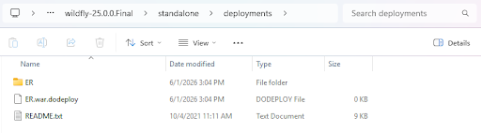
EspressChart WildFly Deployment Directory
| Note |
|---|---|
The empty |
The EC.war directory name gives the application the /EC context. The application will be available at http://<your-server-ip>:8080/EC.
Open the following file in a text editor:
<WF_INSTALL_DIR>\bin\standalone.conf.bat
Near the beginning of the file, after the header comments and before the existing
JAVA_OPTSconfiguration, add the following lines:set "JAVA_HOME=<JDK_INSTALL_DIR>" cd /d <EC_INSTALL_DIR>
Replace
<JDK_INSTALL_DIR>with the directory of the JDK used to run WildFly.Replace
<EC_INSTALL_DIR>with the EspressChart installation directory.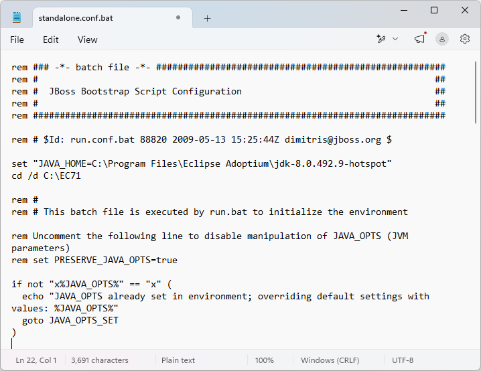
WildFly Configuration
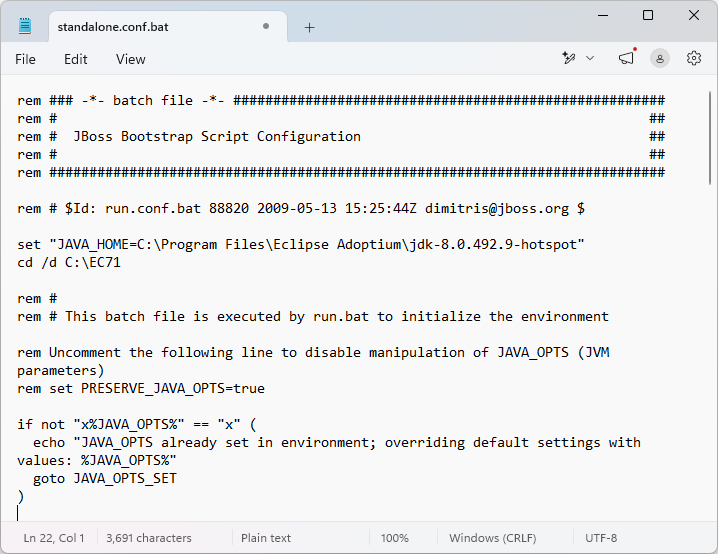
The JAVA_HOME setting specifies the JDK used to start WildFly.
The cd /d <EC_INSTALL_DIR> command sets the working directory to the EspressChart installation directory so that EspressChart can locate files referenced using relative paths.
By default, WildFly listens only on the local interface. If the application will only be accessed from the computer on which WildFly is running, you can skip this section.
To make WildFly accessible from another computer, locate the following line in <WF_INSTALL_DIR>\bin\standalone.conf.bat:
set "JAVA_OPTS=%JAVA_OPTS% -Djava.awt.headless=true"
Immediately after this line, add:
set "JAVA_OPTS=%JAVA_OPTS% -Djboss.bind.address=0.0.0.0"
This configures WildFly to listen for application connections on all network interfaces. Add this setting at this location rather than at the beginning of standalone.conf.bat so that WildFly's default JVM settings are retained.
| Note |
|---|---|
If a firewall is enabled on the server, make sure that inbound connections to the WildFly HTTP port, which is |
Make sure that the following servlet connection settings are present in <WF_INSTALL_DIR>\standalone\deployments\EC.war\EspressChart.jsp:
<param name="comm_protocol" value="servlet"/>
<param name="comm_url" value="<%=codebase%>"/>
<param name="servlet_context" value="servlet"/>
These settings are included in the default EspressChart 7.1 installation. If the values in your file differ, change them to the values shown above.
Open the
<WF_INSTALL_DIR>\bindirectory.Run
standalone.bat. A console window opens and WildFly starts. Leave this window open while WildFly is running. Closing the window stops the server.
After about a minute, the console displays a message indicating that EC.war has been deployed. The marker file in the standalone\deployments directory also changes from EC.war.dodeploy to EC.war.deployed. Either confirms that EspressChart was deployed successfully.
EspressManager starts automatically the first time Chart Designer connects, so you do not need to start it separately. To start EspressManager manually or check its status, open the following page in a browser:
http://<your-server-ip>:8080/EC/EspressManager.jsp
Click if you want to start EspressManager explicitly. The same page can also be used to check its status or stop it.
The following instructions show how to install and configure Oracle WebLogic Server 14.1.1.0 and deploy EspressChart under WebLogic. The location of the WebLogic installation will be referenced as <WL_INSTALL_DIR>, the location of the WebLogic domain will be referenced as <WL_DOMAIN_DIR>, and the location of the EspressChart installation will be referenced as <EC_INSTALL_DIR>.
These instructions are written for Windows systems. Steps for other operating systems should be similar.
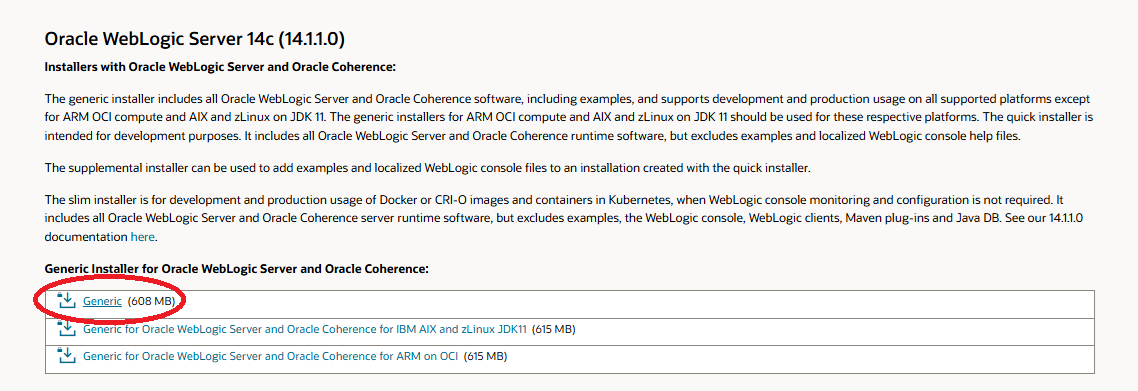
Open the Oracle WebLogic Server 14.1.1.0 download page and locate Generic Installer for Oracle WebLogic Server and Oracle Coherence.
Click Generic to download the installer package.
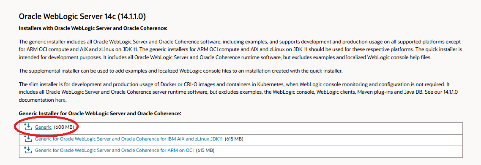
Oracle WebLogic Server 14.1.1.0 Generic Installer Download
After the download completes, extract the ZIP archive to a directory of your choice. The downloaded archive and installer JAR filenames may vary. For example:
fmw_14.1.1.0.0_wls_lite_Disk1_1of1.zip
The extracted archive contains the WebLogic installer JAR. For example:
fmw_14.1.1.0.0_wls_lite_generic.jar
Open Command Prompt as an administrator and change to the directory containing the installer JAR. For example:
cd /d C:\WebLogic14Installer
Run the installer JAR using an Oracle JDK:
"<JDK_INSTALL_DIR>\bin\java.exe" -jar fmw_14.1.1.0.0_wls_lite_generic.jar
Note The WebLogic installer requires an Oracle JDK. OpenJDK and Amazon Corretto are not accepted by the installer. After WebLogic has been installed, JDK 8 or JDK 11 can be used to run WebLogic.
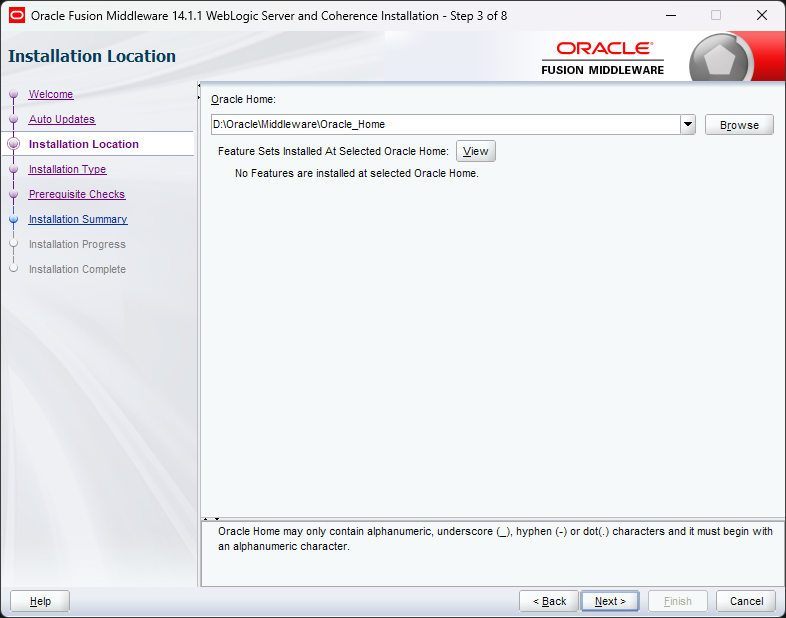
On the Installation Location screen, select the directory in which to install WebLogic. This directory will be referenced as
<WL_INSTALL_DIR>throughout this section.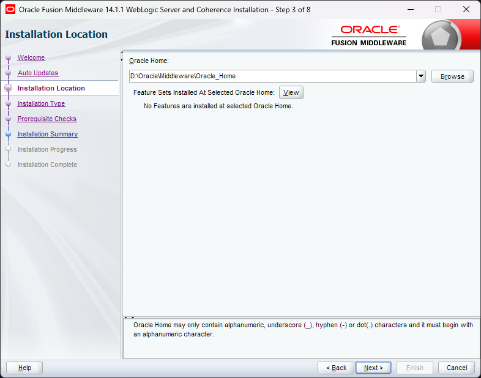
WebLogic Installation Location
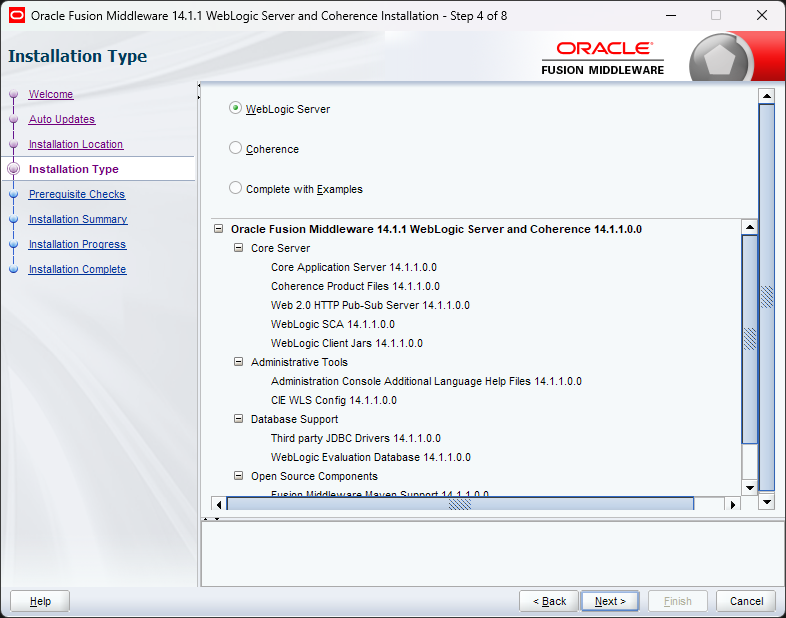
On the Installation Type screen, select WebLogic Server and click .
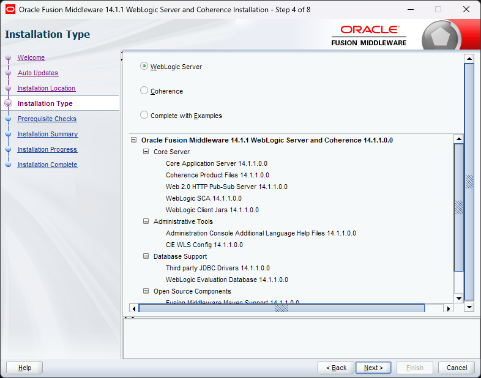
WebLogic Installation Type
Continue through the remaining installer screens using the default settings and install WebLogic.
When the installation completes, leave Automatically Launch the Configuration Wizard selected and click .
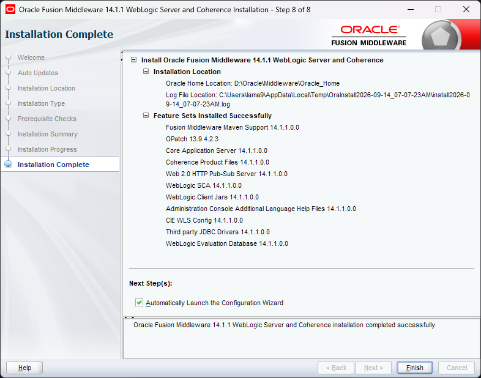
WebLogic Installation Complete
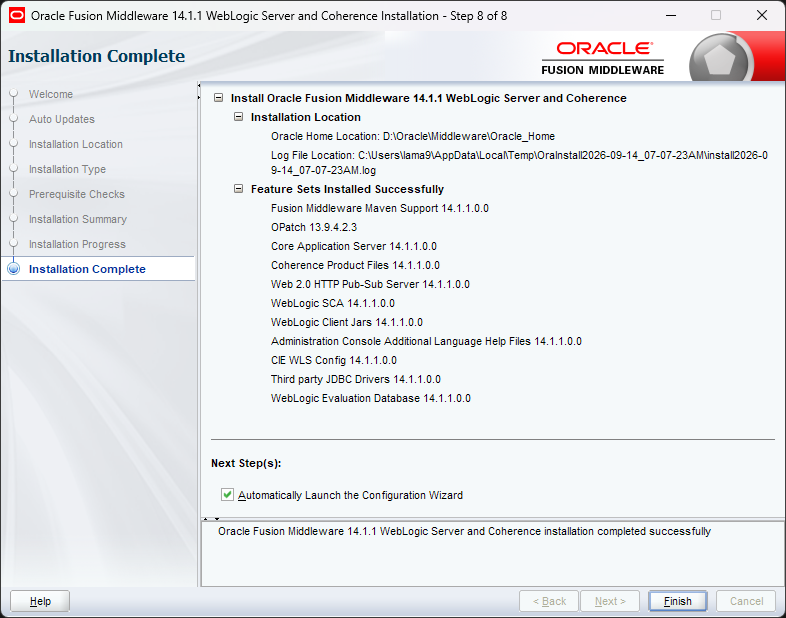
In the Configuration Wizard, create a new WebLogic domain and use the default settings unless otherwise noted. The domain directory will be referenced as <WL_DOMAIN_DIR> throughout this section.
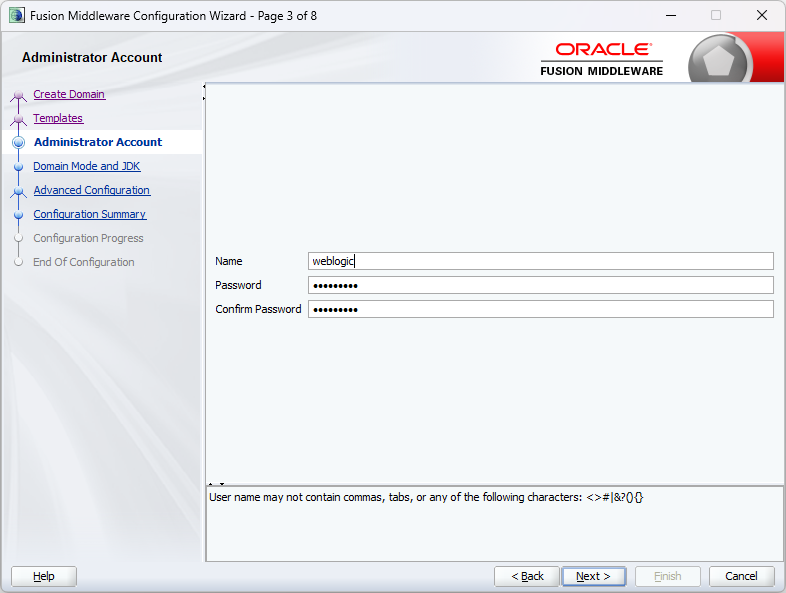
On the Administrator Account screen, enter the WebLogic administrator user name and password. The default administrator user name is typically
weblogic. Record the credentials because they are required later to access the WebLogic Administration Console.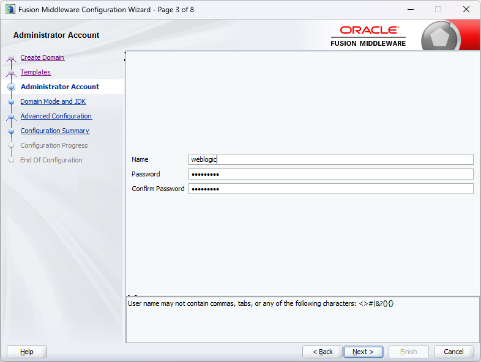
WebLogic Administrator Account
Continue through the remaining Configuration Wizard screens using the default settings and create the domain.
Open the
<WL_DOMAIN_DIR>\autodeploy\directory.Copy the entire EspressChart installation directory into the
autodeploy\directory and name the copied directoryEC.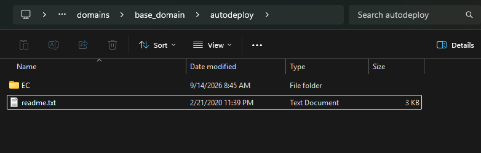
WebLogic Autodeploy Directory
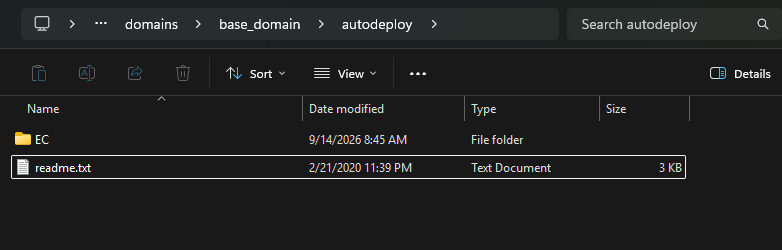
The EC directory name gives the application the /EC context. The application will be available at http://<your-server-ip>:7001/EC.
WebLogic uses the domain directory as the JVM working directory. Runtime resources that EspressChart or EspressReport accesses using relative paths must therefore be copied into the domain directory.
Open the
<WL_DOMAIN_DIR>\directory.Copy the
userdb\directory from<EC_INSTALL_DIR>into<WL_DOMAIN_DIR>\if it is present.Copy the
DataRegistry\directory from<EC_INSTALL_DIR>into<WL_DOMAIN_DIR>\if it is present.
Open the following file in a text editor:
<WL_DOMAIN_DIR>\bin\setDomainEnv.cmd
At the bottom of the file, add the application directory to the WebLogic classpath:
set CLASSPATH=%CLASSPATH%;<WL_DOMAIN_DIR>\autodeploy\EC
Replace
<WL_DOMAIN_DIR>with the WebLogic domain directory.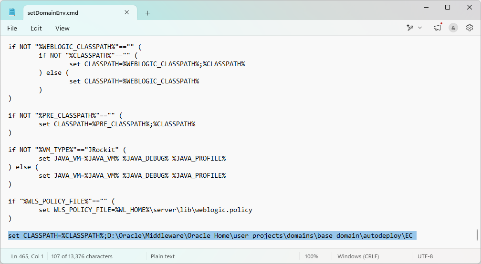
WebLogic Configuration
Locate the following line:
set JAVA_HOME=%JAVA_HOME%
Immediately above it, add:
set JAVA_HOME=<JDK_INSTALL_DIR>
Replace
<JDK_INSTALL_DIR>with the directory of the JDK used to run WebLogic.Locate:
set PRODUCTION_MODE=
and change it to:
set PRODUCTION_MODE=false
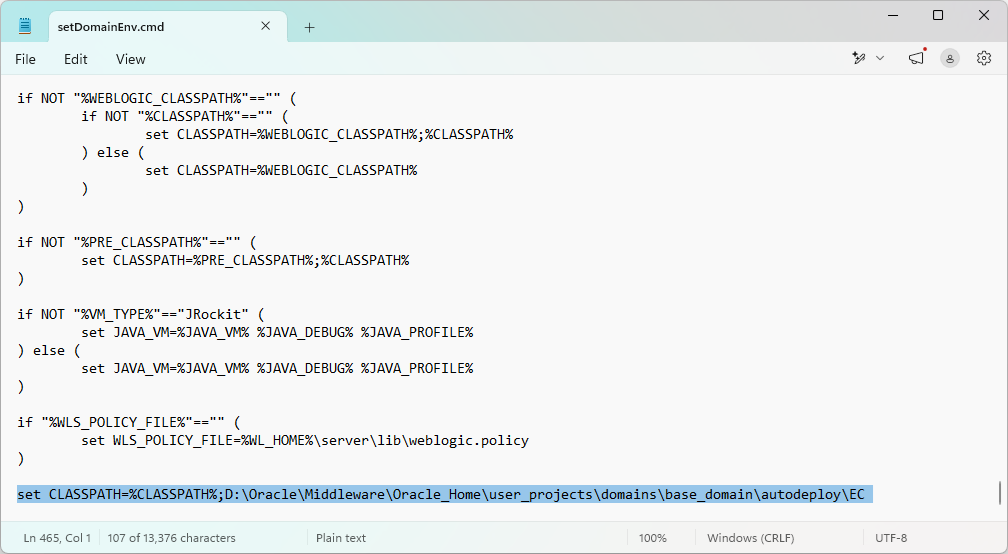
The JAVA_HOME setting specifies the JDK used to start WebLogic. Setting PRODUCTION_MODE to false allows applications in the autodeploy\ directory to be deployed automatically.
Make sure that the following servlet connection settings are present in <WL_DOMAIN_DIR>\autodeploy\EC\EspressChart.jsp:
<param name="comm_protocol" value="servlet"/>
<param name="comm_url" value="<%=codebase%>"/>
<param name="servlet_context" value="servlet"/>
These settings are included in the default EspressChart 7.1 installation. If the values in your file differ, change them to the values shown above.
Open the
<WL_DOMAIN_DIR>\bin\directory.Run
startWebLogic.cmd. A console window opens and WebLogic starts. Leave this window open while WebLogic is running. Closing the window stops the server.After WebLogic starts, open the following page in a browser:
http://<your-server-ip>:7001/console
Log in using the administrator user name and password created during domain configuration.
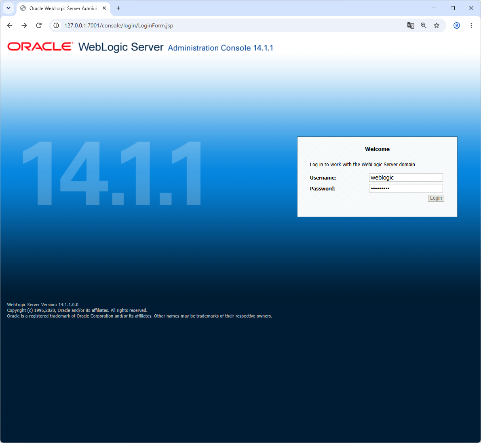
WebLogic Administration Console Login
In the WebLogic Administration Console, click Deployments and verify that the application was deployed successfully.
Successful Application Deployment under WebLogic

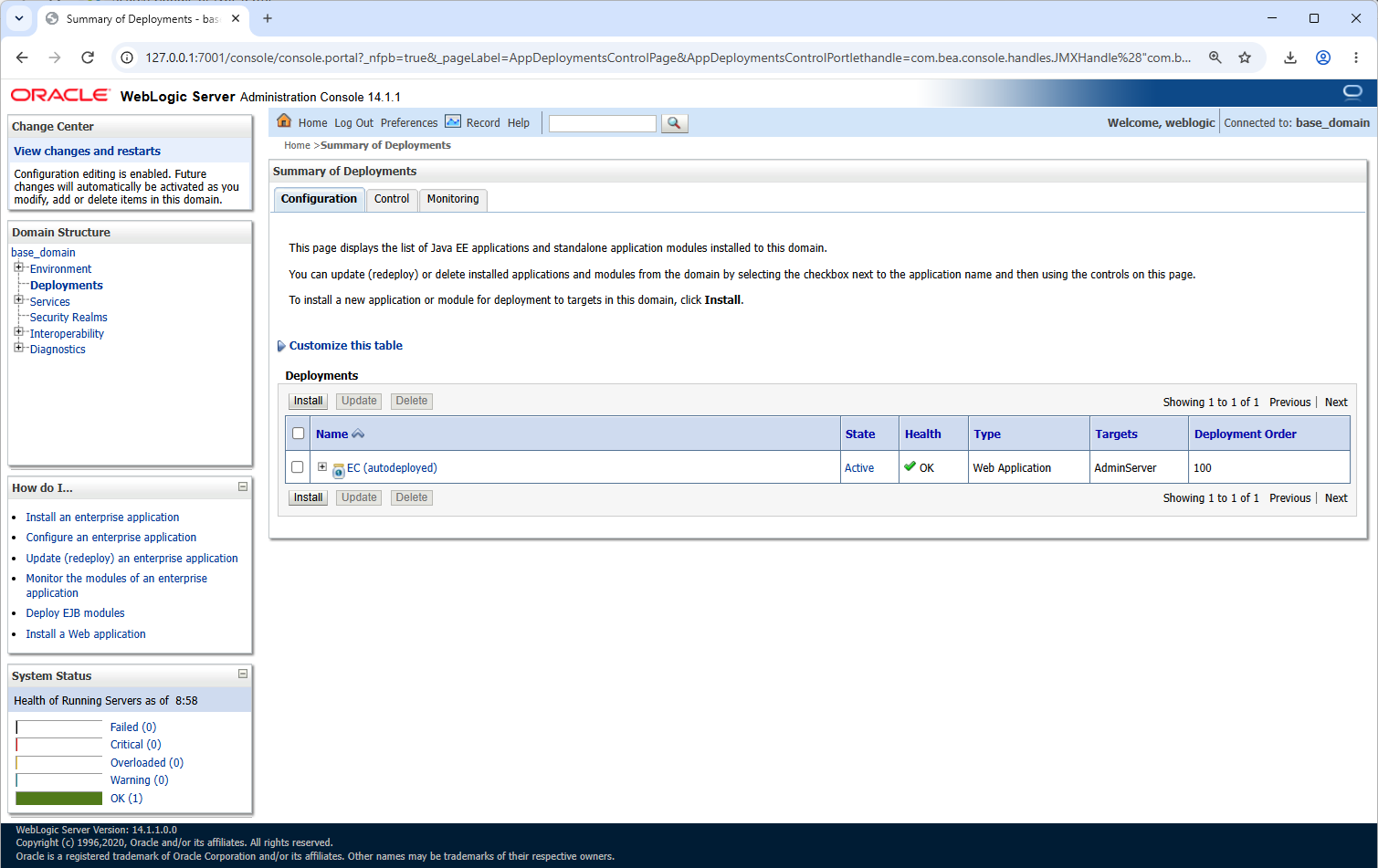
The EspressChart deployment should be listed as Active with a health status of OK.
To start EspressManager manually or check its status, open the following page in a browser:
http://<your-server-ip>:7001/EC/EspressManager.jsp
Click to start EspressManager. The same page can also be used to check its status or stop it.
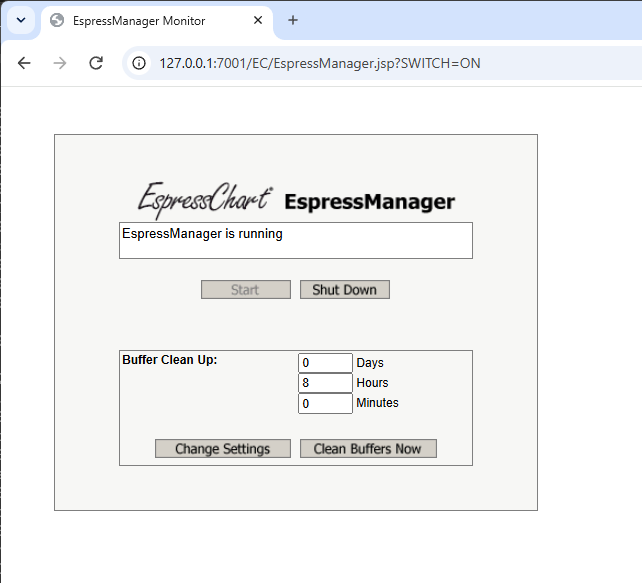
EspressManager Monitor
Open Liberty is the open-source upstream of IBM WebSphere Liberty and uses the same runtime engine. The following instructions apply to both.
The following instructions show how to install and configure Liberty and deploy EspressChart. The location of the Liberty installation will be referenced as <LIBERTY_INSTALL_DIR> and the location of the EspressChart installation will be referenced as <EC_INSTALL_DIR>.
These instructions are written for Windows systems. Steps for other operating systems should be similar.
Open the Open Liberty download page at https://openliberty.io/downloads/.
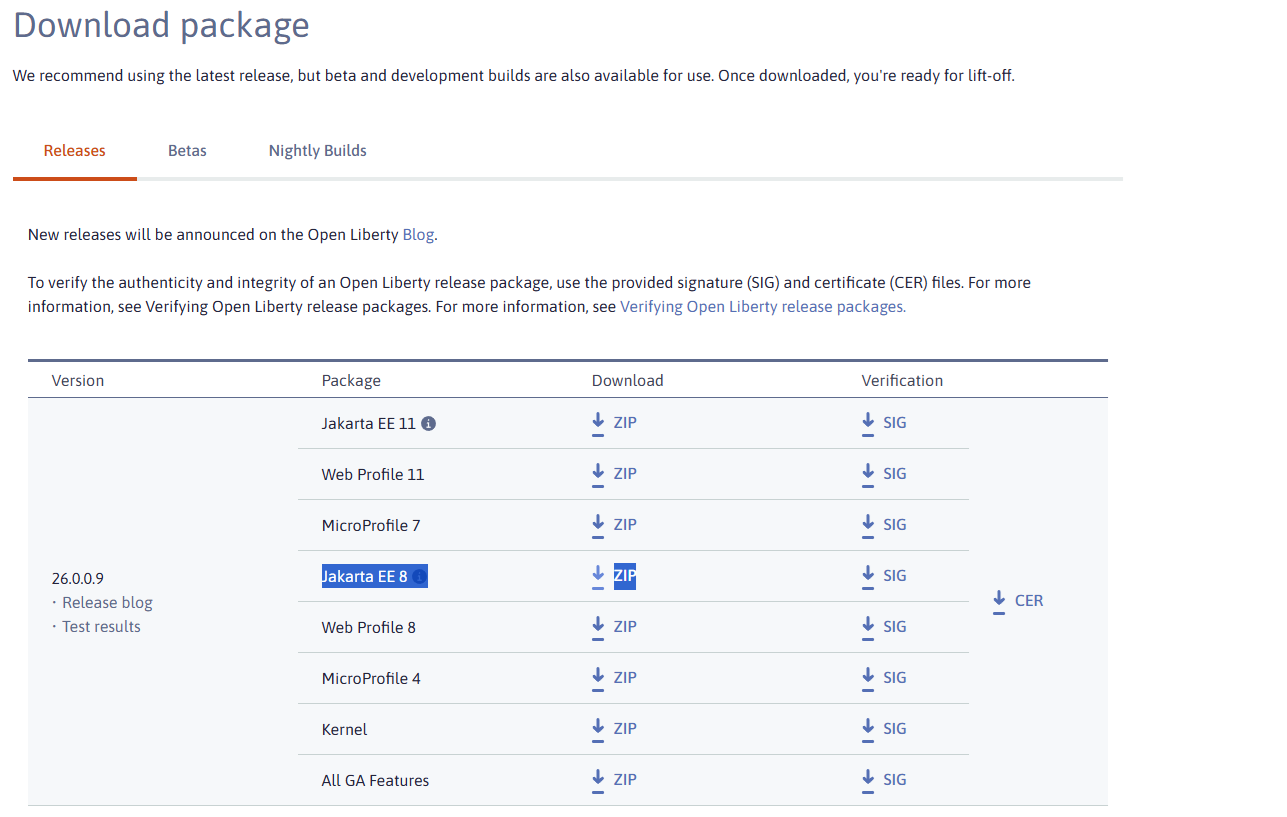
Download the Java EE 8 compatible Full Platform package. On current Open Liberty download pages, this package is listed as Jakarta EE 8.
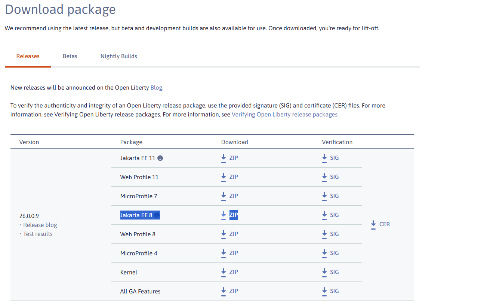
Open Liberty Jakarta EE 8 Package Download
Extract the ZIP archive to a directory of your choice. The extracted Liberty directory will be referenced as
<LIBERTY_INSTALL_DIR>throughout this section.Open a Command Prompt window and create the
defaultServerserver:<LIBERTY_INSTALL_DIR>\bin\server.bat create defaultServer
Open
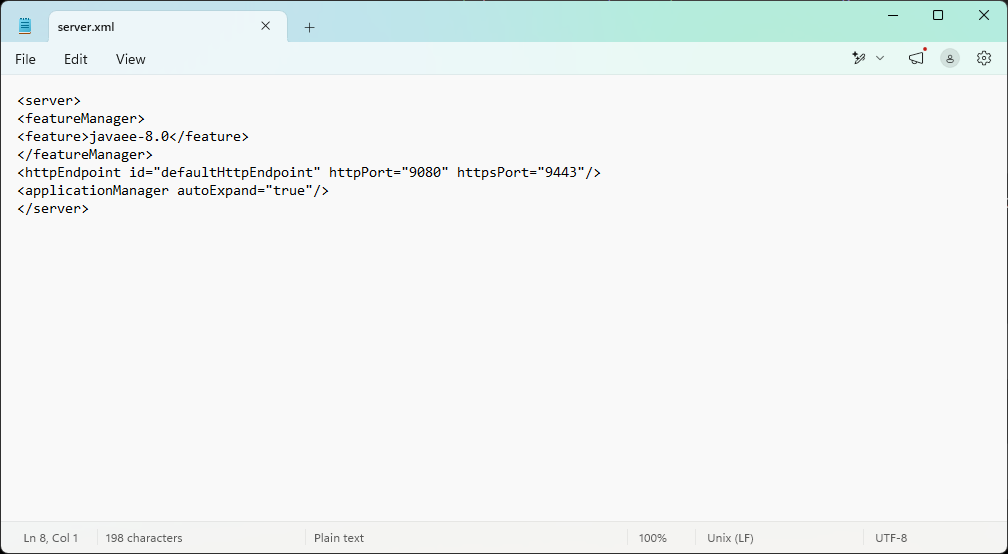
<LIBERTY_INSTALL_DIR>\usr\servers\defaultServer\server.xmlin a text editor.Configure the Java EE 8 feature, HTTP ports, and automatic application expansion as follows:
<server>
	<featureManager>
		<feature>javaee-8.0</feature>
	</featureManager>
	<httpEndpoint id="defaultHttpEndpoint" httpPort="9080" httpsPort="9443"/>
	<applicationManager autoExpand="true"/>
</server>
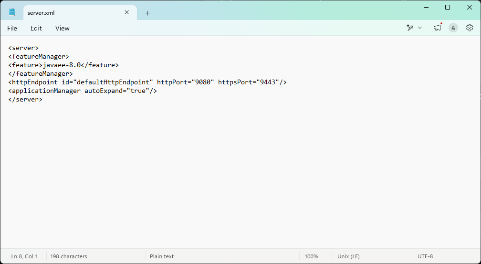
Open Liberty Server Configuration
Create
<LIBERTY_INSTALL_DIR>\usr\servers\defaultServer\server.envif it does not already exist, or open the existing file in a text editor.Add the following line:
JAVA_HOME=<JDK_INSTALL_DIR>
Replace
<JDK_INSTALL_DIR>with the directory of the JDK used to run Liberty.
| Note |
|---|---|
Values in |
| Note |
|---|---|
Use the |
Open the
<LIBERTY_INSTALL_DIR>\usr\servers\defaultServer\dropins\directory.Copy the entire EspressChart installation directory into the
dropins\directory and rename the copied directory toEC.war.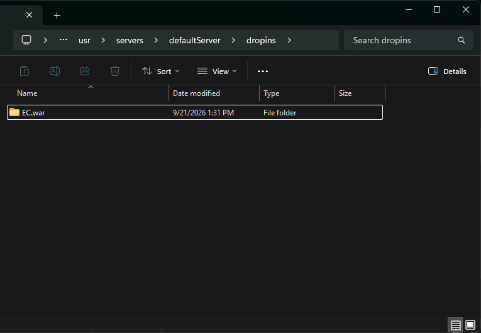
Liberty Application Deployment Directory
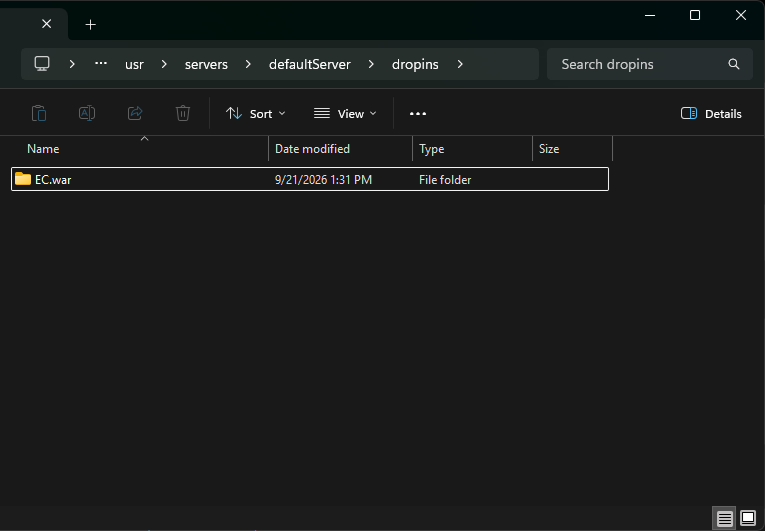
The EC.war directory name gives the application the /EC context. The application will be available at http://<your-server-ip>:9080/EC.
Liberty uses the server directory as the JVM working directory. Runtime resources that EspressChart or EspressReport accesses using relative paths must therefore be copied into the server directory.
Open
<LIBERTY_INSTALL_DIR>\usr\servers\defaultServer\.Copy the
userdb\directory from<EC_INSTALL_DIR>into the Liberty server directory if it is present.Copy the
DataRegistry\directory from<EC_INSTALL_DIR>into the Liberty server directory if it is present.
Make sure that the following servlet connection settings are present in <LIBERTY_INSTALL_DIR>\usr\servers\defaultServer\dropins\EC.war\EspressChart.jsp:
<param name="comm_protocol" value="servlet"/>
<param name="comm_url" value="<%=codebase%>"/>
<param name="servlet_context" value="servlet"/>
These settings are included in the default EspressChart 7.1 installation. If the values in your file differ, change them to the values shown above.
Open the
<LIBERTY_INSTALL_DIR>\bin\directory.Run
server.batwith the following arguments:server.bat run defaultServer
A console window opens and Liberty starts. Leave this window open while Liberty is running. Closing the window stops the server.
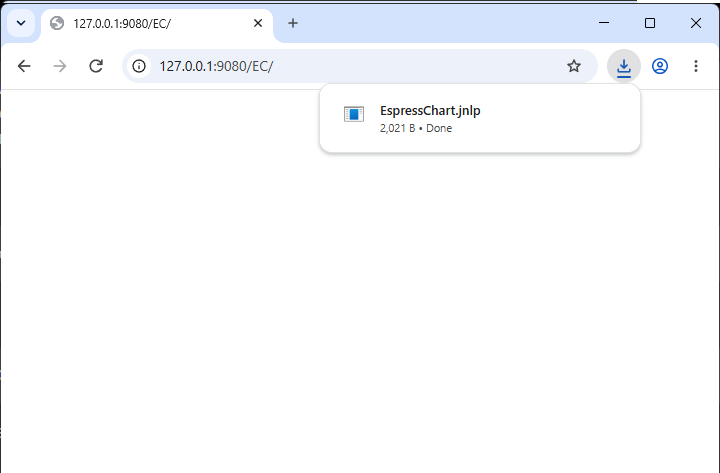
When deployment succeeds, Liberty reports that the EC application has started and makes the web application available at http://localhost:9080/EC/.
To start EspressManager manually or check its status, open the following page in a browser:
http://<your-server-ip>:9080/EC/EspressManager.jsp
Click to start EspressManager. The same page can also be used to check its status or stop it.
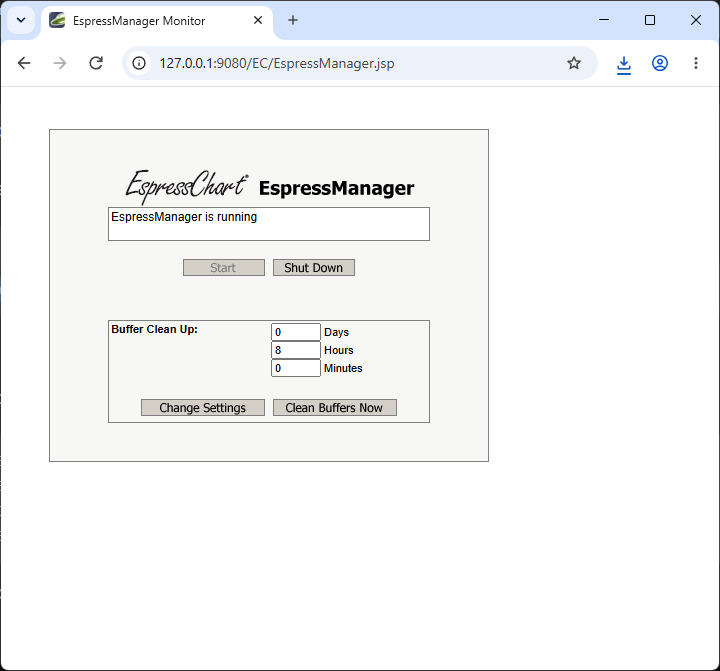
EspressManager Monitor
EspressChart 7.1 and EspressReport 7.1 use the javax.servlet namespace. Application server versions that use the jakarta.servlet namespace are not compatible without a product-level migration.
The following application server versions are not supported:
Apache Tomcat 10 and later
Red Hat WildFly 26 and later
IBM WebSphere Liberty / Open Liberty 23 and later when using Jakarta EE 9 or later features
Oracle WebLogic Server 14.1.2 and later
Eclipse GlassFish 6 and later, Payara Server 6 and later, and Eclipse Jetty 11 and later